




VideoMap: Supporting Video Editing Exploration, Brainstorming, and Prototyping in the Latent Space
VideoMap places video frames on a latent space map organized by shape, color, or meaning, so editors can create seamless transitions and edits.
Summary
Video editing is a creative and complex endeavor and we believe that there is potential for reimagining a new video editing interface to better support the creative and exploratory nature of video editing. We take inspiration from latent space exploration tools that help users find patterns and connections within complex datasets. We present VideoMap, a proof-of-concept video editing interface that operates on video frames projected onto a latent space. We support intuitive navigation through map-inspired navigational elements and facilitate transitioning between different latent spaces through swappable lenses. We built three VideoMap components to support editors in three common video tasks. In a user study with both professionals and non-professionals, editors found that VideoMap helps reduce grunt work, offers a user-friendly experience, provides an inspirational way of editing, and effectively supports the exploratory nature of video editing. We further demonstrate the versatility of VideoMap by implementing three extended applications.
Video
Background
Editors need to understand their footage, come up with a narrative, and find connections between clips to join them with suitable transitions. However, popular editing interfaces are built around a sequential timeline and a grid of clips sorted by filename or time of creation. They support putting frames in order, but not the exploratory parts of editing, such as getting an overview of the footage, finding connections between clips, and quickly trying out editing ideas. We take inspiration from latent space exploration tools, which help users find patterns in complex data by laying it out on a 2D map, and ask if editors could similarly edit videos within a latent space of video frames.
Method
We present VideoMap, a proof-of-concept video editing interface that operates on video frames projected onto a latent space. VideoMap has three components for three common editing tasks: Project Panel for exploring footage, Paths Explorer for finding transitions, and Route Planner for prototyping rough cuts.
Principles
We ground VideoMap in three principles from video editing theory and practice:
- Overview. Show all the footage at a glance, instead of having editors play through it on a timeline.
- Continuity. Help editors join clips seamlessly, for example, with a match cut from a bagel to a donut. If frames with similar shapes are close together in the latent space, VideoMap can suggest the closest frames from other videos as transitions.
- Exploration. Give editors several ways to try things out: navigating the map, searching with text prompts, seeing several transition options at once, and previewing automatic rough cuts.
Building the Map
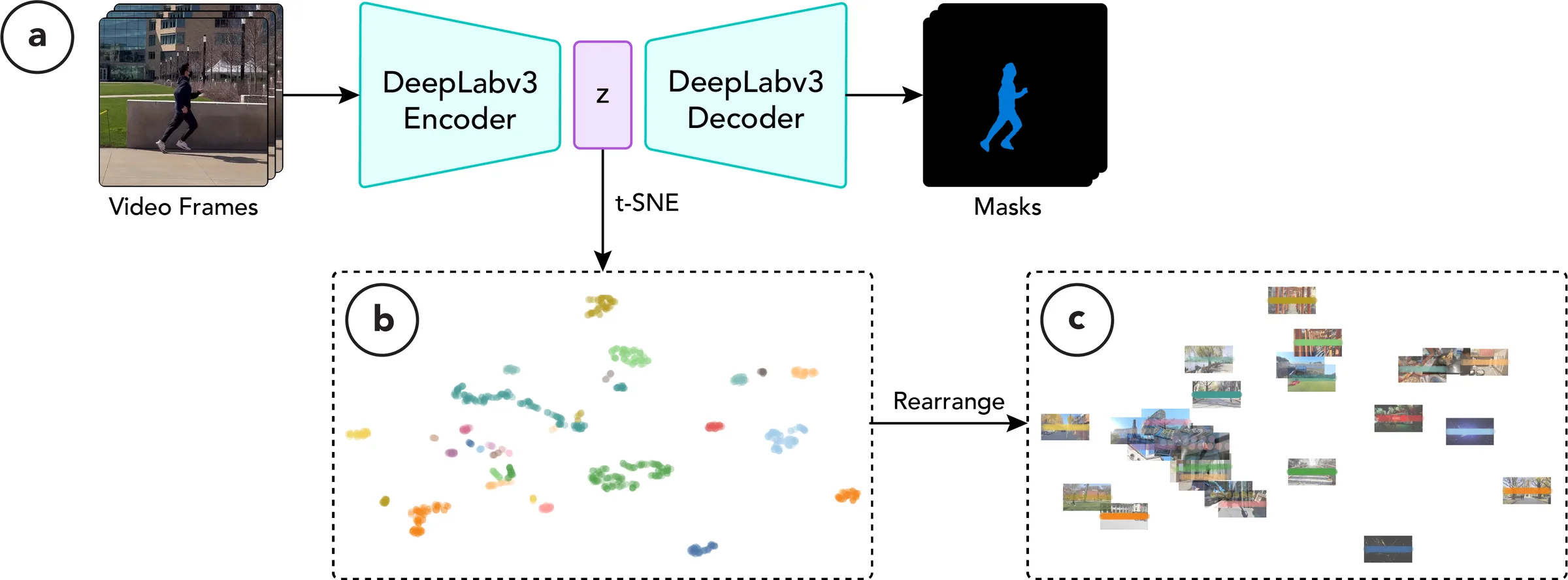
VideoMap builds the map with a lens, which encodes video frames into vectors for a particular editing task. For example, the shape lens takes a 512-dimensional vector for each frame from DeepLabv3, an image masking model. Since the model is trained to extract the dominant shapes in an image, frames with similar shapes should have similar vectors. We reduce the vectors to two dimensions with t-SNE. Editors in our pilot tests found the plain t-SNE plot too messy, so we lay out each video's frames in a horizontal row through its centroid, and the editor can play a video by scrubbing along its row. We also built a color lens, which uses a 512-dimensional color histogram, and a semantic lens, which uses CLIP image embeddings. We call these swappable lenses, and the editor can switch between them at any time.
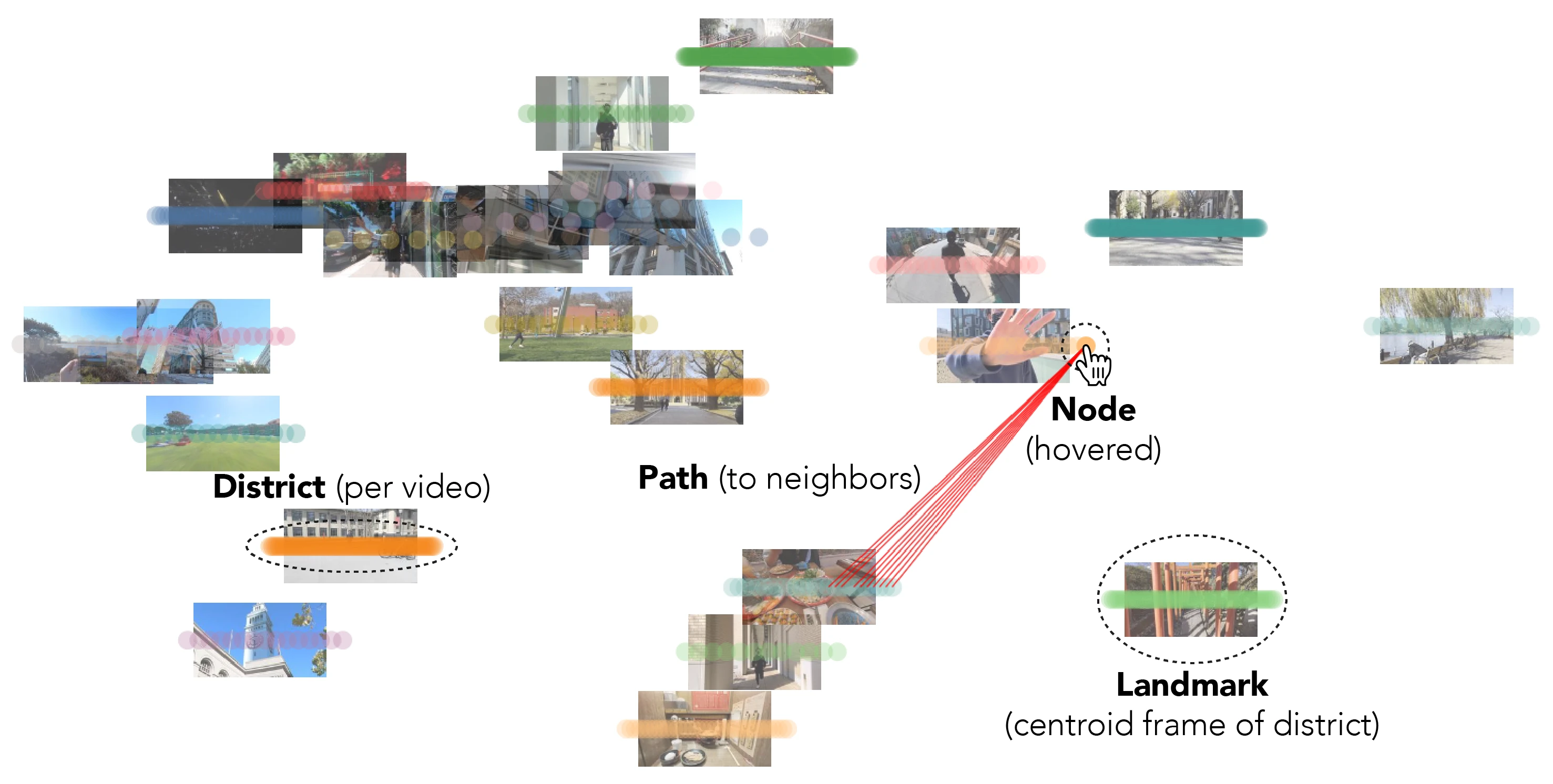
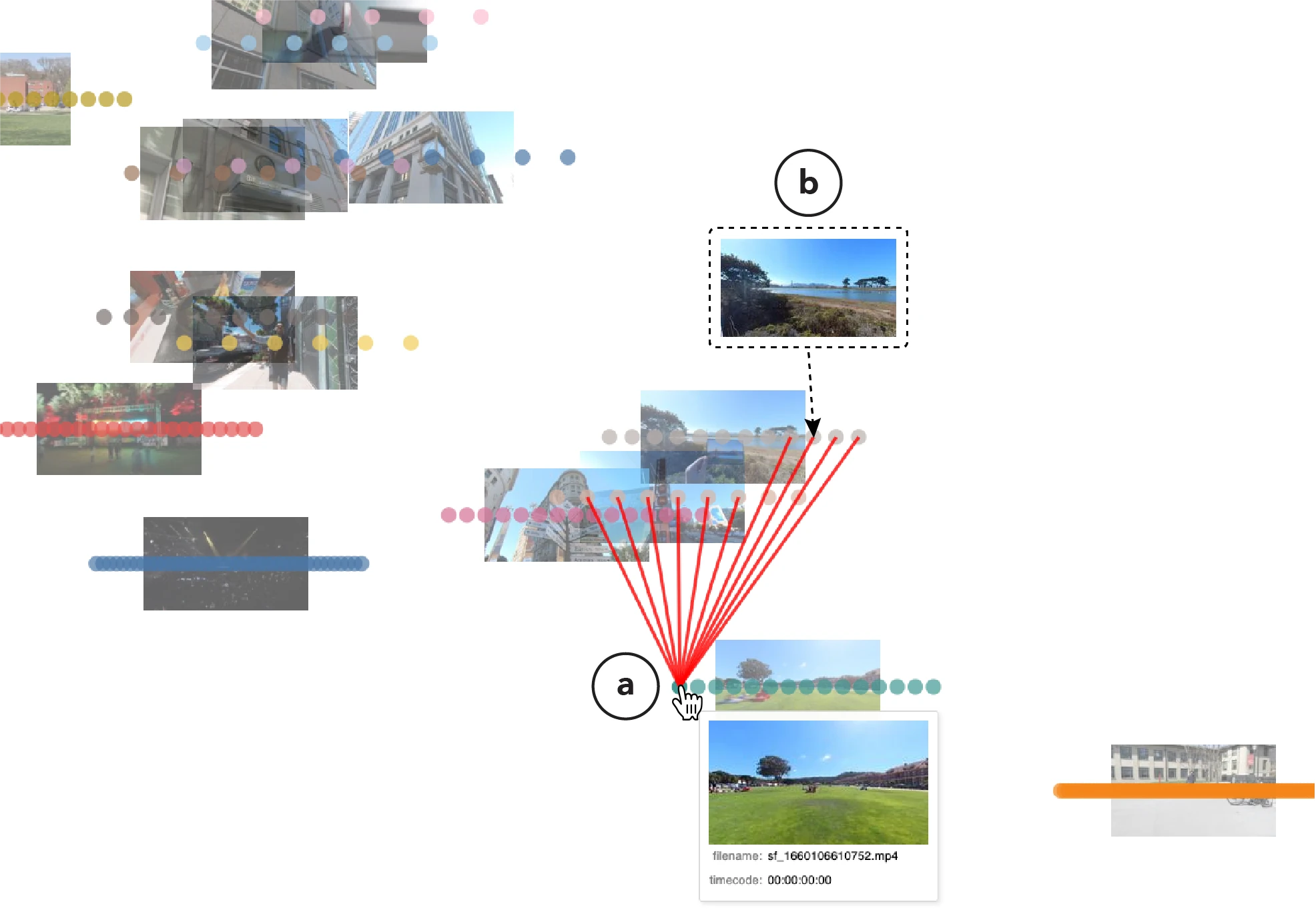
To help editors navigate the map, we borrow four elements from Lynch's The Image of the City: nodes, paths, districts, and landmarks (see the figure at the top of this page).
Project Panel
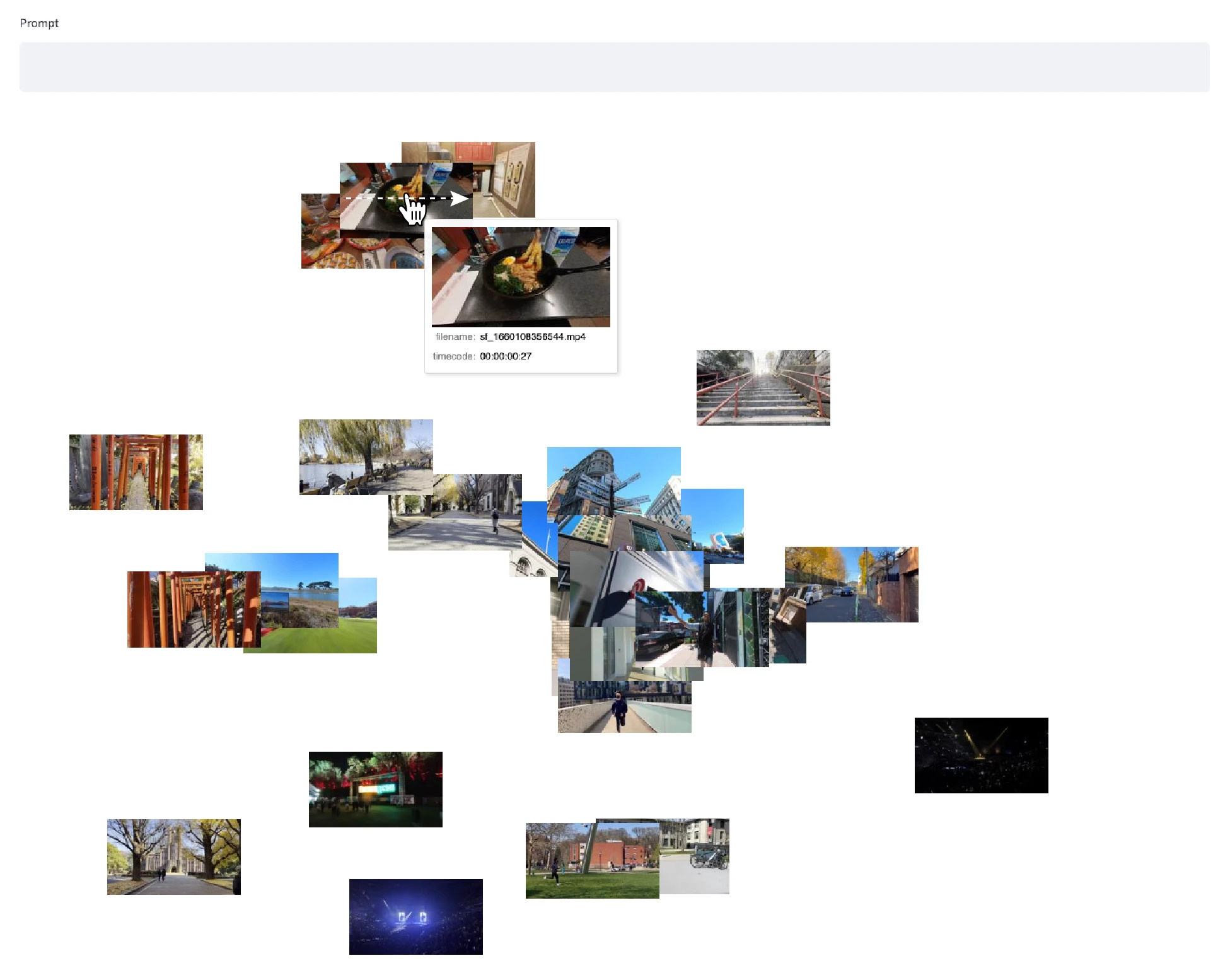
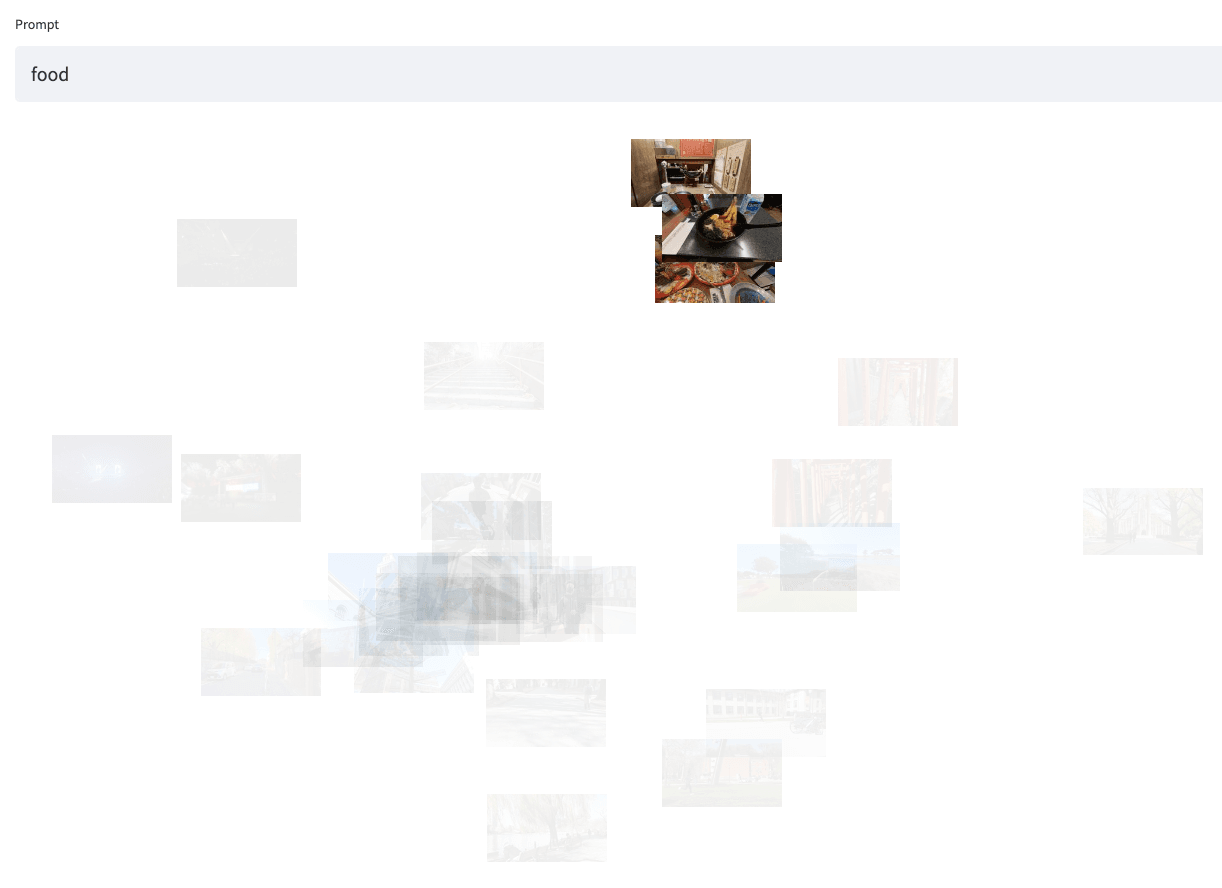
Project Panel replaces the usual grid of video files with the map, showing each video as its landmark. The editor can also filter videos with text prompts, such as "torii gates". We compare the prompt's CLIP text embedding with the frames' CLIP image embeddings.
Paths Explorer
Paths Explorer shows every frame as a point, colored by video. When the editor clicks a frame, VideoMap draws ten paths to the closest frames in other videos, and each path is a suggested transition under the selected lens.
Route Planner
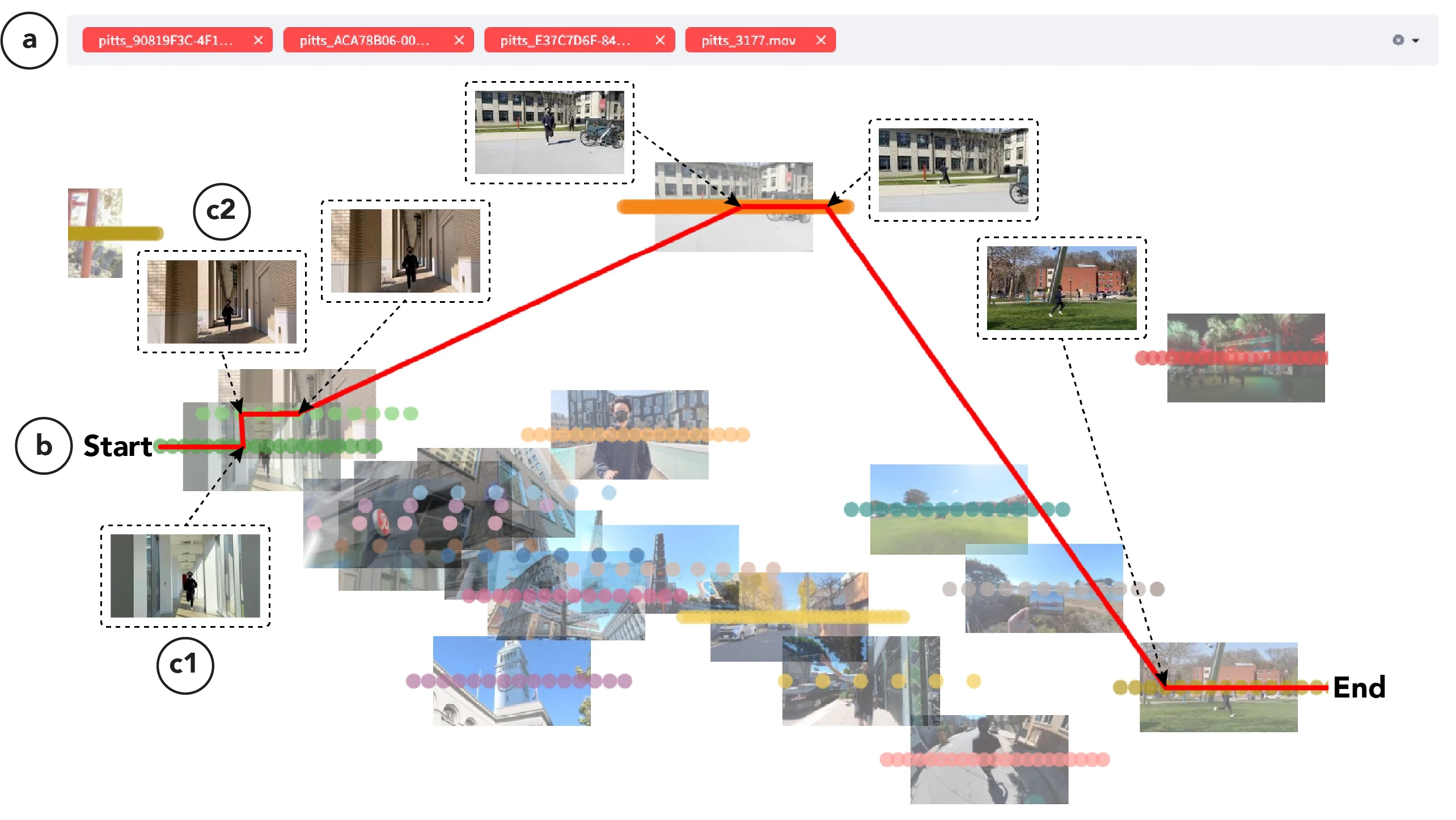
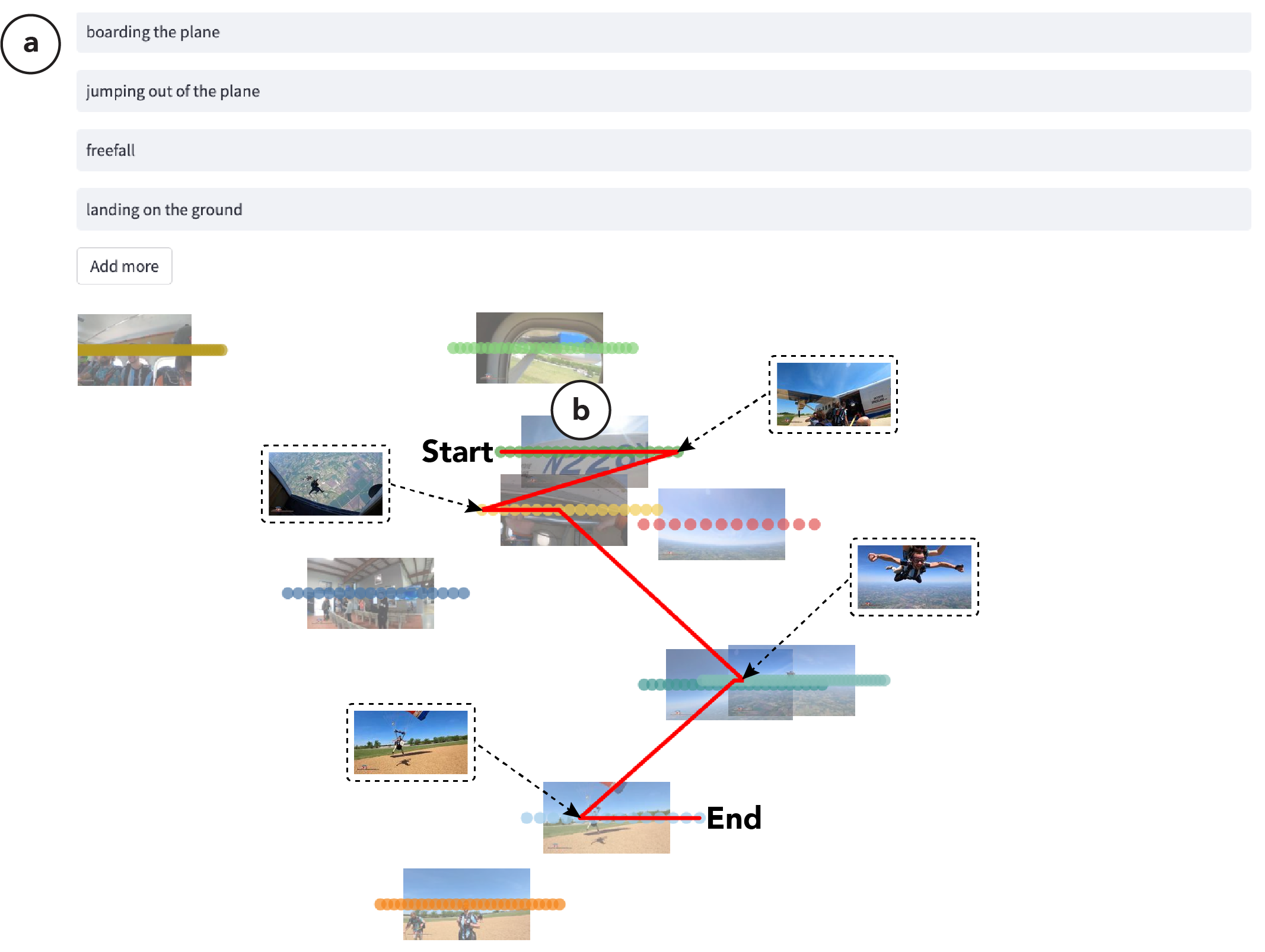
Route Planner creates a rough cut from clips the editor selects. Like the route planner in Google Maps, it finds the shortest route that passes through each selected clip once. We first find the best transition between every pair of videos, then find the shortest route through them with dynamic programming. Switching lenses gives a different rough cut. For example, under the color lens, it connects clips with similar color grading.
User Study
We conducted a user study with 14 participants (8 male, 6 female) aged 23 to 55: seven professional video editors recruited from Upwork and seven non-professional editors from our institution. Using a collection of 30 videos filmed in places including San Francisco, Pittsburgh, and Tokyo, participants did one task with each component. They got familiar with the collection and tried the lenses and prompts in Project Panel, recorded three interesting transitions in Paths Explorer, and recorded one rough cut in Route Planner. There was no baseline condition. Participants thought aloud during the Zoom session, which took about an hour, and then compared each task with their usual editing software in a written survey. We analyzed the notes, transcripts, and survey responses with inductive coding.
Generally, participants used Project Panel to get familiar with the footage quickly and see which clips belong together, and two used it to spot outlier videos. Several said it would save them from tagging clips or sorting them into folders by hand. Their prompts were around 2 words long on average, from objects (bike) to cinematography (establishing shot). Eight participants preferred the semantic lens the most, three the color lens, and three the shape lens. They also found their own uses for the lenses: P5 used the color lens to order videos from day to night, and N5 used it to find black frames to use as transition points.
With Paths Explorer, participants found match cuts with little time and effort. P3 said that "having a lens that specifically found the paths between matching shapes shaved off hours of looking through footage". Non-professionals said it changed how they think about transitions. For example, N3 said it "made [them] put more thought into transitions".
With Route Planner, participants quickly prototyped rough cuts and used them to come up with and preview editing ideas. N3 said about one rough cut: "That foot part didn't even seem like a transition. It just seemed so seamless that I thought it was the same video."
Applications
We implemented three extended applications of VideoMap.
Video Summarization
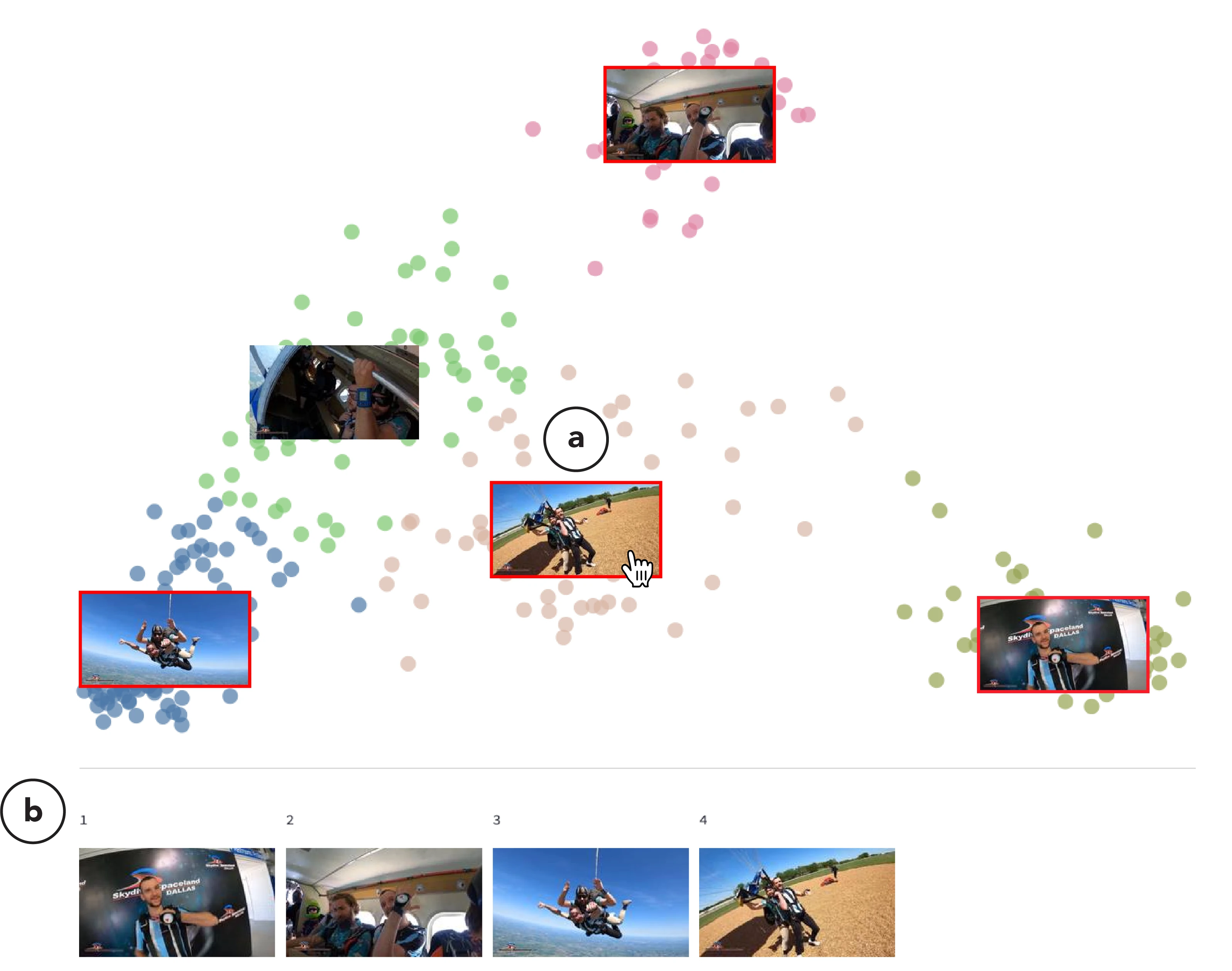
Project Panel can be extended to create summary videos. We split the frames of one video into semantic districts with k-means clustering, where each district roughly represents one main activity. The editor clicks the landmarks of the activities they want, in order, and VideoMap joins three seconds of video around each one.
Video Highlights
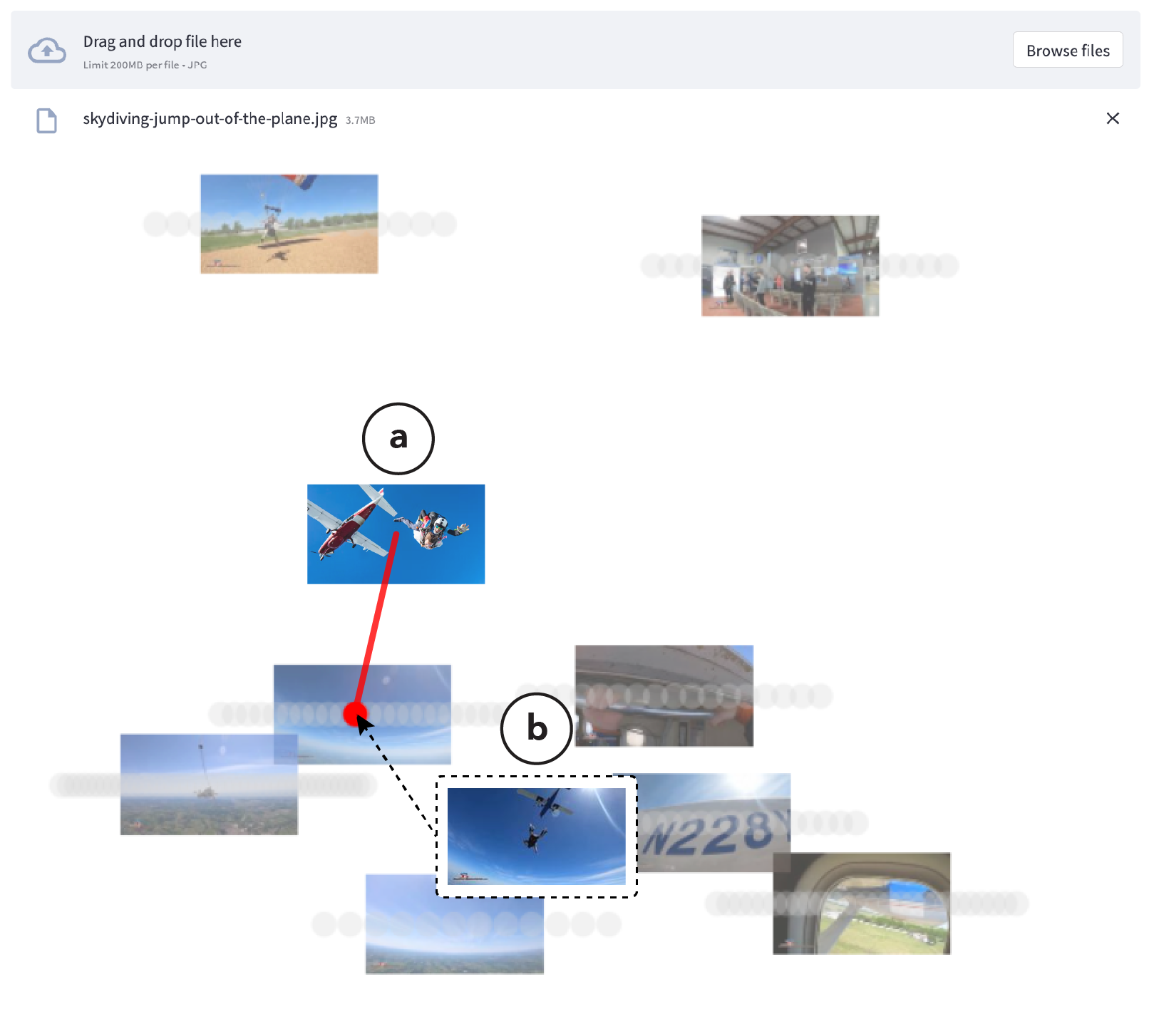
Paths Explorer can be extended to create highlight videos. The editor uploads a photograph of an activity, such as skydiving, as a custom landmark. In our work on Videogenic, we found that photographs taken by photographers tend to capture the most highlight-worthy moments of an activity, so VideoMap takes the five seconds of video around the frame nearest to the photograph.
Text-Based Video Editing
Route Planner can be extended to edit videos with text. The editor describes the video in a few sentences, like writing a story. We match each sentence to the closest video in the semantic space and find the shortest route through those videos in the order of the story.
Acknowledgments
We thank colleagues in the Augmented Design Capability Studio for valuable feedback on our system, Howie Wang for the idea of remapping video frames of the same video chronologically, Bella Yang and Bill Guo for filming video clips used for the user study, and Dominik Moritz, Thiago Teixeira, and Lukas Masuch for support on the Streamlit Vega-Lite package used in VideoMap's implementation.
Citation
@inproceedings{lin2024videomap,
  author    = {Lin, David Chuan-En and Caba Heilbron, Fabian and Lee, Joon-Young and Wang, Oliver and Martelaro, Nikolas},
  title     = {VideoMap: Supporting Video Editing Exploration, Brainstorming, and Prototyping in the Latent Space},
  booktitle = {Proceedings of the 16th Conference on Creativity \& Cognition},
  series    = {C\&C '24},
  year      = {2024},
  pages     = {311--327},
  numpages  = {17},
  publisher = {Association for Computing Machinery},
  address   = {New York, NY, USA},
  doi       = {10.1145/3635636.3656192},
  url       = {https://doi.org/10.1145/3635636.3656192},
  location  = {Chicago, IL, USA}
}